SAML
SAML integration provides:
- Authentication using corporate identities through your SAML IdP.
- Role-based authorization — every authenticated user is resolved to one of four built-in roles (or a custom role you define), which controls which UI surfaces and API endpoints they can use.
- Namespace-scoped data visibility — custom roles can be limited to a comma-separated list of Kubernetes namespaces; the hub injects a server-side filter so users only see traffic from their scope.
The role configuration (tap.auth.roles, tap.auth.rolesClaim, tap.auth.groupMapping, tap.auth.defaultRole) is shared with OIDC — see the Roles & Permissions page for the full vocabulary. The OIDC page covers the same role model applied against an OIDC IdP.
SAML Configuration
# values.yaml

tap:
  auth:
    enabled: true
    type: saml
    # SAML attribute carrying the user's role memberships. In the
    # example IdP below this is named `users-roles`; it can be any
    # attribute name your IdP exposes.
    rolesClaim: users-roles
    # Built-in role applied when an authenticated user has no attribute
    # value that maps to a role. Set to "" for strict-deny (authenticated
    # but no capabilities). Default in the chart is `kubeshark-viewer`.
    defaultRole: kubeshark-viewer
    # Map SAML attribute values → role names. Names may reference one of
    # the four built-in roles (kubeshark-admin / kubeshark-realtime /
    # kubeshark-snapshot / kubeshark-viewer) or a custom role declared
    # under `roles` below.
    groupMapping:
      engineering-leads: kubeshark-admin
      sre-oncall: kubeshark-realtime
      support: kubeshark-viewer
      payments-team: payments-viewer    # custom role, see `roles` below
    # Custom (operator-defined) roles. Each role declares its capability
    # set + namespace scope. Names starting with `kubeshark-` are
    # reserved for built-ins and will be rejected at hub startup.
    roles:
      payments-viewer:
        capabilities:
          - snapshot:read
        namespaces: "payments,checkout"
    saml:
      idpMetadataUrl: ""
      x509crt: ""
      x509key: ""
Custom role names MUST appear in
groupMappingto participate in resolution. Identity-match (attribute value === role name) only works for the four built-inkubeshark-*names.
tap.auth.type: samlwith an emptyidpMetadataUrlfails the Helm render rather than installing. Earlier releases accepted the combination and silently produced a Hub that authenticated nobody, so an upgrade may surface a misconfiguration that used to pass unnoticed.
X.509 Certificate & Key
openssl genrsa -out mykey.key 2048
openssl req -new -key mykey.key -out mycsr.csr
openssl x509 -signkey mykey.key -in mycsr.csr -req -days 365 -out mycert.crtmycert.crt— use fortap.auth.saml.x509crt.mykey.key— use fortap.auth.saml.x509key.
IdP Attribute Configuration
tap.auth.rolesClaim must match the name of the SAML attribute set in the App Metadata (app_metadata) section of the IdP — e.g. role, roles, users-roles, or any attribute name the IdP emits. The value can be a single text value or an array of values (multi-role users).
For example, in Auth0 it looks like this:
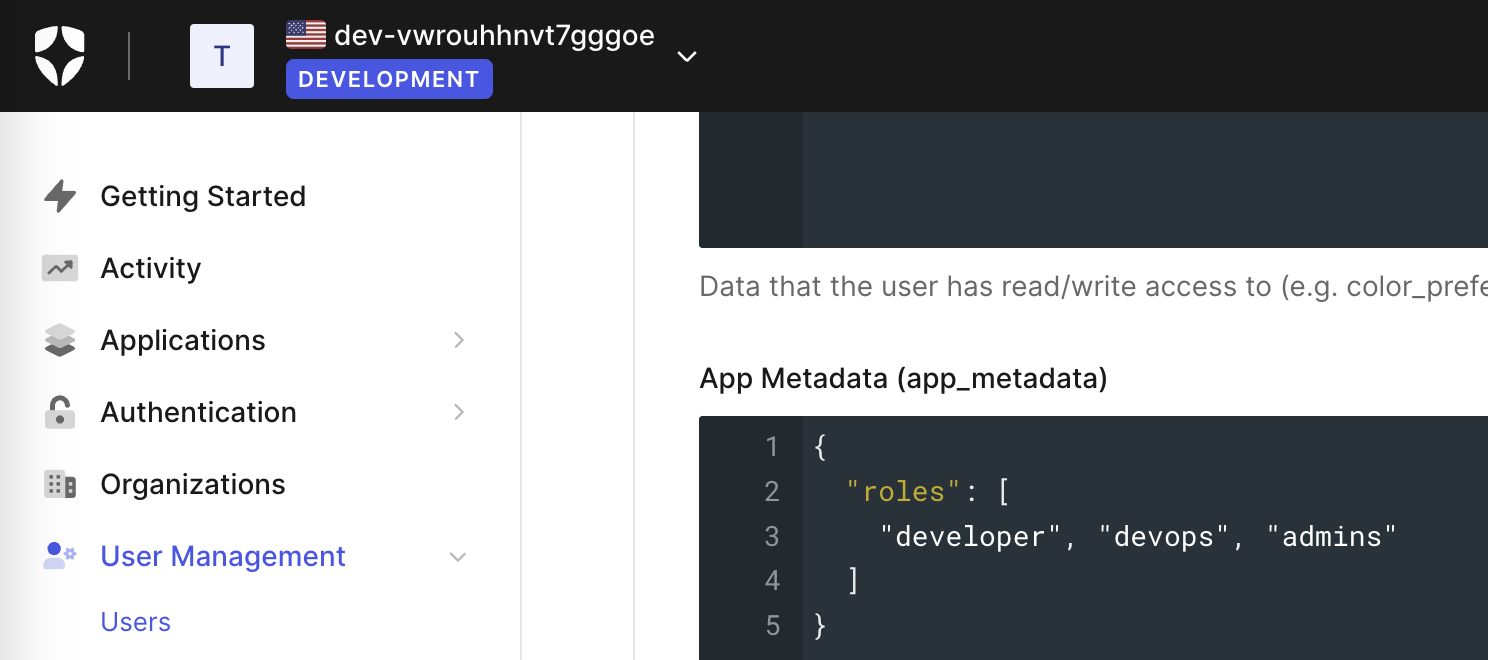
Each attribute value is matched against groupMapping first, then identity-matched against built-in role names. See Roles & Permissions for the resolution algorithm.
Role Resolution
When a user signs in, the hub walks the attribute values in this order:
- For each value, check
groupMapping. If present, the mapped role becomes a candidate. - Otherwise, if the value identity-matches a built-in role name (
kubeshark-admin,kubeshark-realtime,kubeshark-snapshot,kubeshark-viewer), it becomes a candidate. - Anything else is silently dropped.
- The highest-precedence built-in candidate wins (
admin > realtime > snapshot > viewer). Built-in roles always rank above custom roles when both match. - If no candidates remain,
defaultRoleis applied. IfdefaultRoleis empty, the user is authenticated but has no capabilities (strict-deny).
See Roles & Permissions for the full algorithm, capability vocabulary, and namespace-scope semantics.
Behaviour when the SAML session can’t be resolved
If the hub fails to resolve a SAML session for a request — service provider not initialized, session cookie missing or expired, claims malformed — both action-level and data-level authorization fail closed:
- The capability set is empty, so every gated UI action and API endpoint returns 403.
- The data path injects a deny-all filter, so REST queries, the legacy WebSocket stream, and Connect-RPC dashboard streams all return empty for the failed request — not “everything in the cluster”.
If you see “no permission” alerts paired with an empty entries list, inspect /whoami first — authenticated: false (or an authType: saml response with no user) usually points at the SAML session, not the role config.
Example
tap:
  auth:
    enabled: true
    type: saml
    rolesClaim: users-roles
    defaultRole: kubeshark-viewer
    groupMapping:
      admins: kubeshark-admin
      sre: kubeshark-realtime
      support: kubeshark-viewer
      payments-ops: payments-ops
    roles:
      payments-ops:
        capabilities:
          - snapshot:read
          - snapshot:write
          - snapshot:dissection
        namespaces: "payments,checkout"
    saml:
      idpMetadataUrl: https://dev-....us.auth0.com/samlp/metadata/9K...pO
      x509crt: |
        -----BEGIN CERTIFICATE-----
        MIIDgzCCAmsCFDtG4VpACGCxV9cAsa6Z+9dA3suWMA0GCSqGSIb3DQEBCwUAMH4x
        ...
        -----END CERTIFICATE-----
      x509key: |
        -----BEGIN PRIVATE KEY-----
        MIIEvQIBADANBgkqhkiG9w0BAQEFAASCBKcwggSjAgEAAoIBAQCW6rSxwgOW5ZvY
        ...
        -----END PRIVATE KEY-----
A user with users-roles: ["sre"] resolves to kubeshark-realtime (live capture + dissection control, no snapshot tab). A user with users-roles: ["payments-ops"] resolves to the custom role and can manage snapshots only for the payments and checkout namespaces. A user with no recognized attribute value falls back to kubeshark-viewer (read-everything baseline).
Verifying the active role with /whoami
GET /whoami returns the authenticated user’s identity, resolved role, effective capabilities, and any authzFilters derived from the role’s namespace scope. Useful for diagnosing access issues — the response shows exactly which role was resolved and which capabilities are active.
The same data is surfaced in the dashboard as the Identity & Access modal — click your name in the top-right to open it.