License Portal & License Key
The License Portal provides a self-service interface for managing your Kubeshark license and subscription.
Accessing the Portal
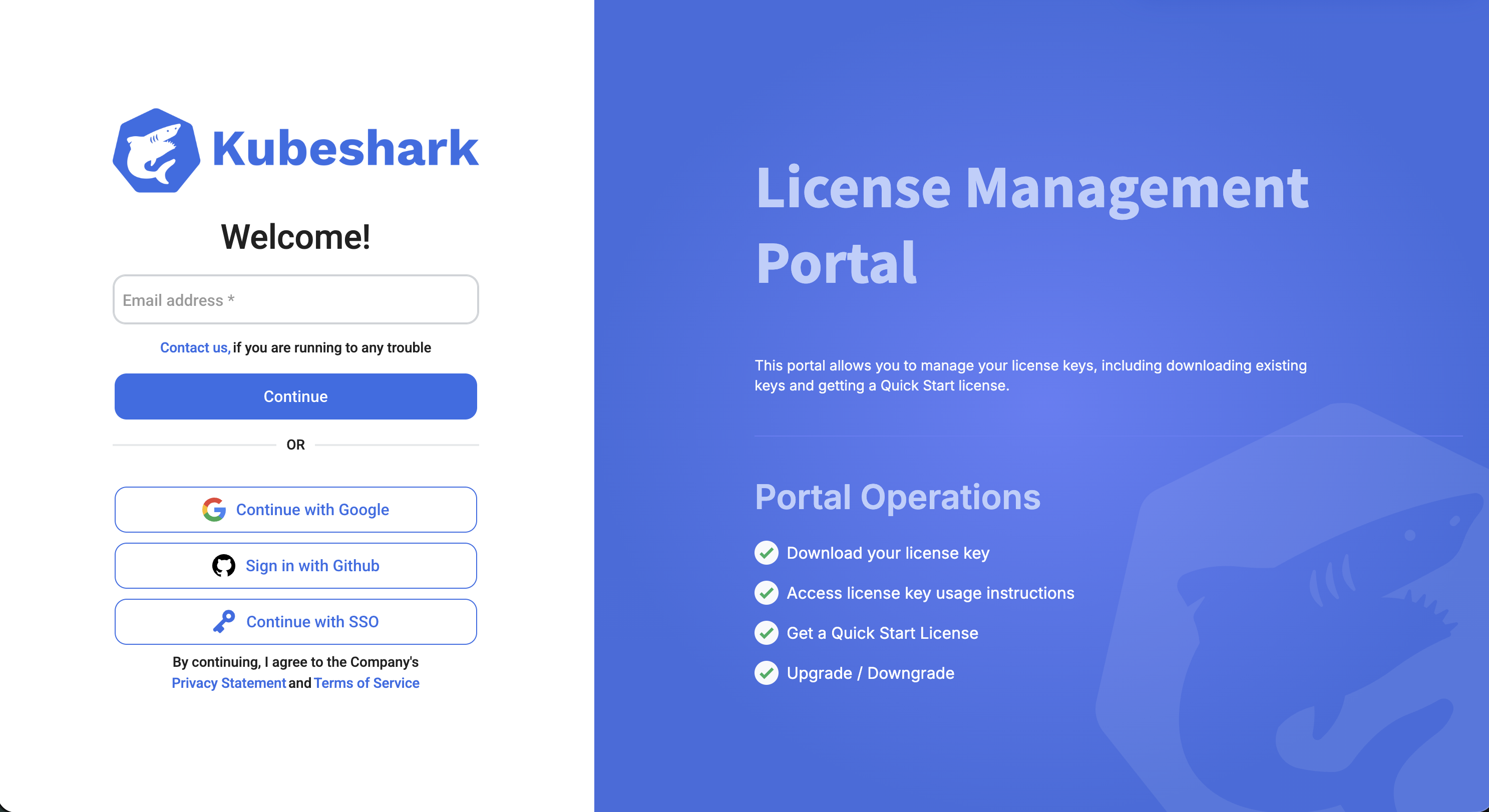
Visit console.kubeshark.com and log in with your account credentials.
License Types
A license key belongs to a named user (the Licensee). The license key is an encrypted string that includes information related to the plan, such as node limit, pod limit, expiration date, and edition.
Single-Cluster License
A single-cluster license key can only be used on a single specific cluster identified by a unique ID. This license cannot be transferred to a different cluster without resetting it first.
The license includes a node limit that should be higher than the maximum node count of the cluster (considering control plane, auto-scaling, spot instances, etc).
Multi-Cluster License
An unlimited-cluster license is a single license key that can be used on any cluster, as long as the number of nodes in the cluster doesn’t surpass the license node limit.
License Tab
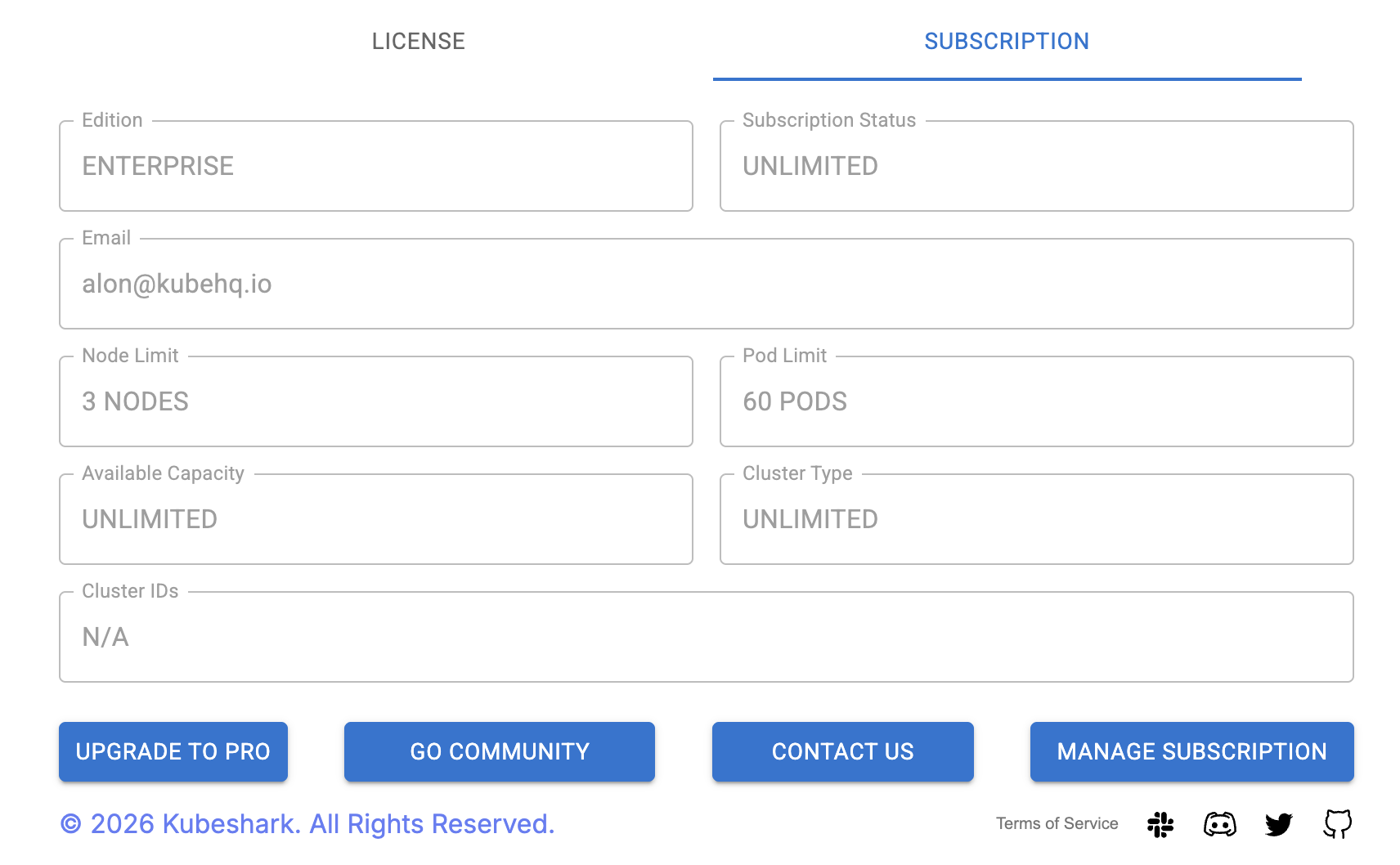
The License tab provides instructions for obtaining and using your license key.
Downloading and Applying a License Key
All users — Community, Pro, and Enterprise — can download their license key from the portal and configure it as a Helm value.
With Helm:
helm install kubeshark kubeshark/kubeshark \
  --set license=<your-license-key>
With the CLI:
kubeshark tap --set license=<your-license-key>Via configuration file:
license: <your-license-key>You can also store the license key as a Kubernetes secret for secure deployment.
Note: Community and Pro licenses require an active internet connection — telemetry must succeed for the license to remain valid. Only Enterprise licenses can operate in air-gapped environments with no internet connectivity.
Subscription Tab
The Subscription tab displays your license attributes:
- Edition (Community, Pro, Enterprise)
- Subscription status
- Node limit
- Pod limit
- Cluster type (single or unlimited)
- Cluster IDs
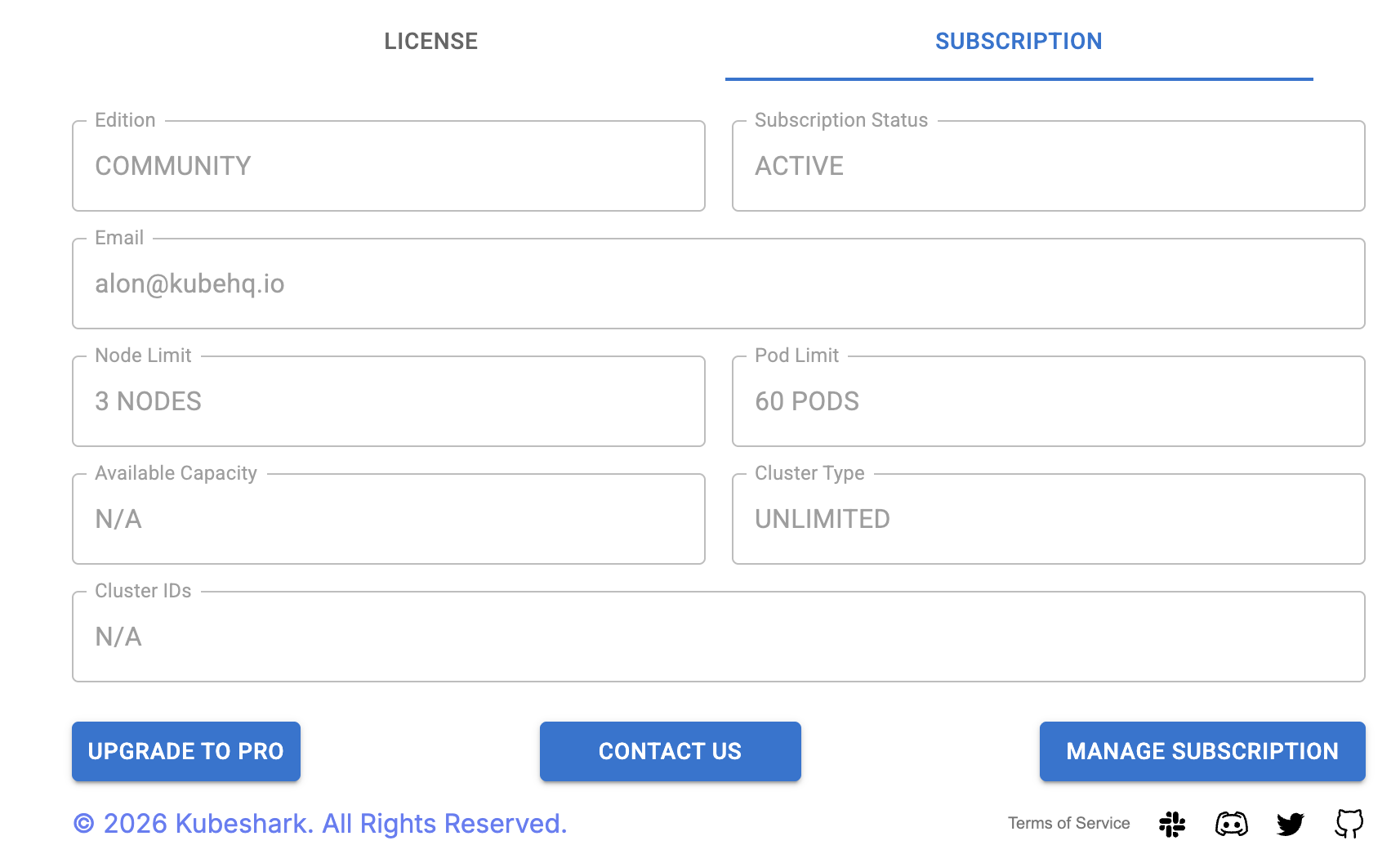
From this tab you can:
- Upgrade to Pro
- Downgrade to Community
- Manage your Stripe subscription (change payment methods, cancel, modify plan)
Applying a License Key
To use a license key in a cluster, the Licensee should log in to Kubeshark’s dashboard on the specific cluster. There is no limit on the number of clusters the Licensee can log in to and apply their license.
The license key is set in Kubeshark’s config map in the specific cluster. It will remain there and serve that cluster and all of its users until explicitly removed or Kubeshark is restarted.
Removing a License Key
Licensees can remove their license key from a cluster by:
- Logging in to Kubeshark’s dashboard on the specific cluster
- Using the
remove licensebutton in the license dialog box
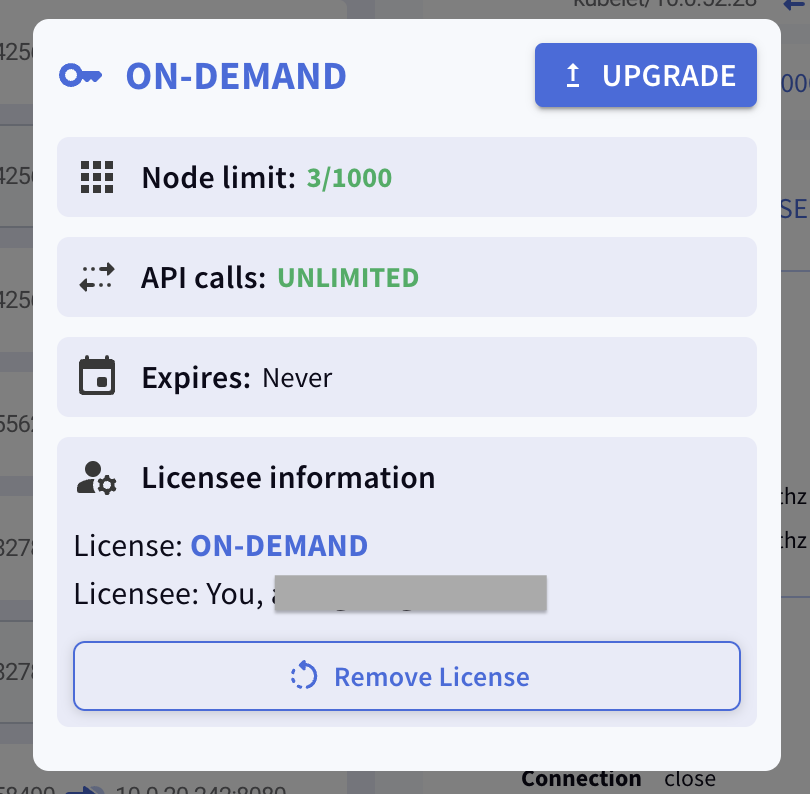
Only the Licensee can remove their license key.
License Key Features
Cluster-Wide Dashboard Access
When a license key is configured locally in the cluster, all users within your organization can access the Kubeshark dashboard without requiring individual authentication. This applies to all license editions (Community, Pro, and Enterprise).
Optional IDP Authentication
For organizations requiring additional access control, Kubeshark supports authentication through your Identity Provider (IDP):
- Enforce your existing authentication policies
- Manage user access through your organization’s IDP
- Maintain audit trails of dashboard access
See SAML and OIDC documentation for configuration details.
Enterprise-Only Features
Air-Gapped Clusters
Enterprise users can operate in air-gapped environments with no internet connectivity. Pro licenses require an active internet connection at all times.
Troubleshooting
Log Out and In
If you log in and don’t see your up-to-date license, try logging out and back in.
Clean Relics of Old Deployments
Make sure you have cleaned any relics from previous deployments:
kubeshark cleanor
helm uninstall kubesharkSetting a new license requires removing the previous license or restarting Kubeshark.
Check the Logs
If there’s an issue, it should become apparent in the Hub’s logs.
Contact Support
If the above remedies did not work, contact us and we’ll get you started quickly.