Enabling / Disabling Real-time Traffic Indexing
Compute resource consumption, especially CPU and memory, is critical in Kubernetes environments. Kubeshark’s L7 traffic indexing consumes significant compute resources as it processes and analyzes network traffic. There are two primary ways to manage resource consumption:
- Enable/Disable Traffic Indexing - Toggle indexing on or off entirely (described on this page)
- Capture Filters - Reduce the number of workloads being indexed to lower resource usage
Enabling or disabling traffic indexing directly controls Kubeshark’s compute resource usage. When indexing is paused, Kubeshark remains in a dormant state within the cluster—not processing traffic and consuming minimal compute resources.
Kubeshark’s Helm template includes a Helm value, tap.capture.dissection.enabled, that determines whether Kubeshark starts with L7 indexing active.
Who may change it
Toggling indexing is gated on the dissection:control capability, whichever route you use. Of the built-in roles only kubeshark-admin and kubeshark-realtime carry it — a caller resolved to kubeshark-viewer or kubeshark-snapshot sees the dashboard button disabled and gets 403 from the API.
This applies whether or not authentication is enabled: with tap.auth.enabled: false every caller is resolved to tap.auth.defaultRole, so a deployment that narrows that value cannot toggle indexing either. The chart default is kubeshark-admin, which can. See Roles & Permissions.
The MCP routes below carry a second requirement: the whole /mcp/* surface needs mcp:use, which only kubeshark-admin holds.
Changing the Value Dynamically
There are multiple ways to toggle indexing at runtime:
Via the Dashboard
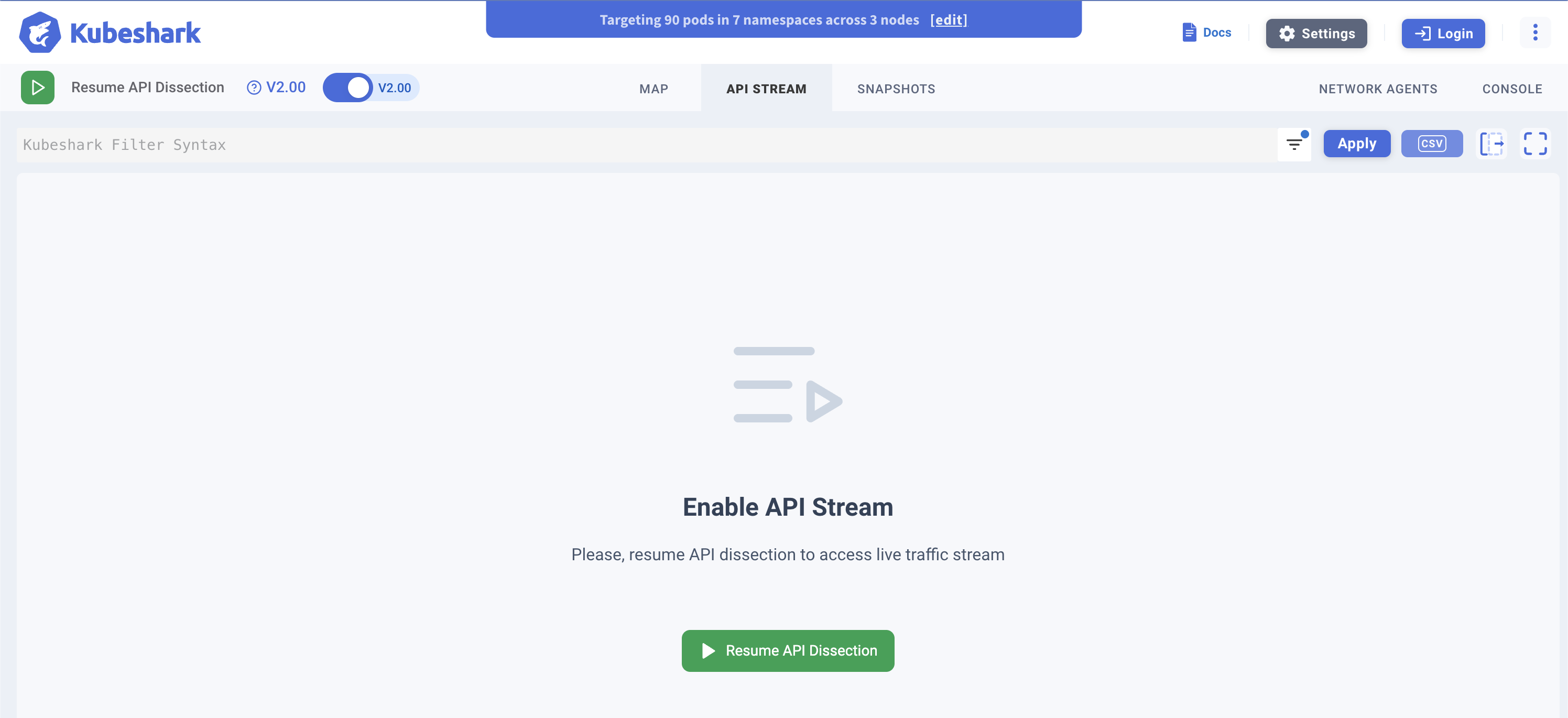
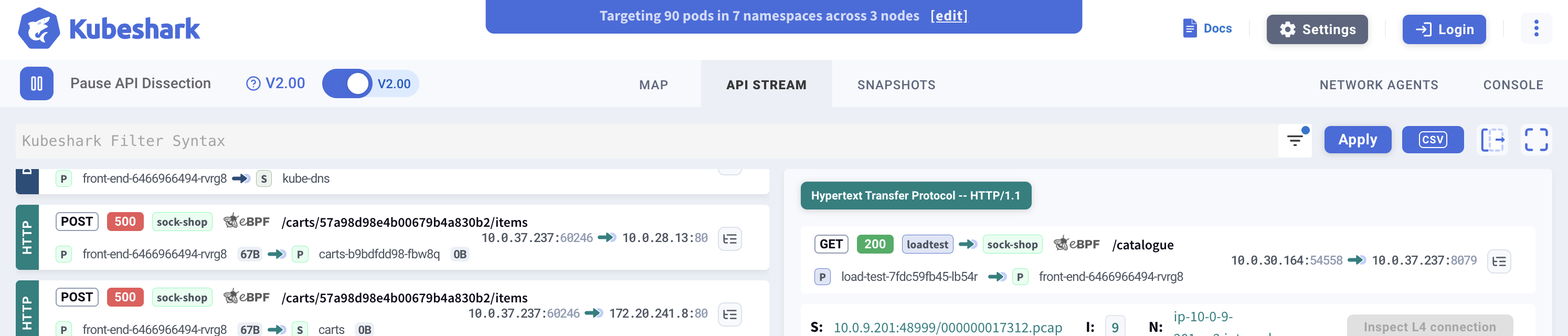
This setting can be updated in real-time through the dashboard by clicking the Traffic Indexing button in the top-left corner. The button has two states:
When traffic indexing is paused - A green play button labeled “Resume Traffic Indexing” is displayed:
When traffic indexing is active - A red stop button labeled “Pause Traffic Indexing” is displayed:
Via MCP Endpoints
AI assistants can control indexing programmatically through the MCP server:
| Endpoint | Method | Description |
|---|---|---|
/mcp/dissection | GET | Get current indexing status |
/mcp/dissection/enable | POST | Enable L7 protocol parsing |
/mcp/dissection/disable | POST | Disable L7 protocol parsing |
On a Hub that identifies its callers these need a credential — see CLI & headless credentials — which the examples below omit for brevity.
Check status:
curl http://localhost:8898/mcp/dissection
# {"enabled": true}
Enable indexing:
curl -X POST http://localhost:8898/mcp/dissection/enable
# {"success": true, "enabled": true}
Disable indexing:
curl -X POST http://localhost:8898/mcp/dissection/disable
# {"success": true, "enabled": false}
See L7 Tools Reference for more details on MCP endpoints.
Using a Helm Value
Setting --set tap.capture.dissection.enabled=false ensures Kubeshark starts in a dormant state, ready to begin traffic indexing once the value is changed to true.
To have Kubeshark perform traffic indexing continuously, set the flag to true either via command line:
--set tap.capture.dissection.enabled=true
or in the values.yaml file:
tap:
  capture:
    dissection:
      enabled: true
      stopAfter: 5m
Inactivity Timeout
The tap.capture.dissection.stopAfter Helm value automatically pauses traffic indexing and transitions Kubeshark into dormant mode when no activity is detected. By default, this timeout is 5m (5 minutes).
Activity is defined as one of the following:
- At least one dashboard session open with streaming enabled
- An active traffic recording
- An active Network Agent
If none of these conditions are met, Kubeshark will enter dormant mode after the specified period.
Important: If you want traffic indexing to run continuously without automatic timeout, set
tap.capture.dissection.stopAfter: 0. Otherwise, traffic indexing will automatically pause 5 minutes after the last dashboard disconnects.
To disable inactivity-based dormancy:
tap:
  capture:
    dissection:
      stopAfter: 0