L7 API Stream
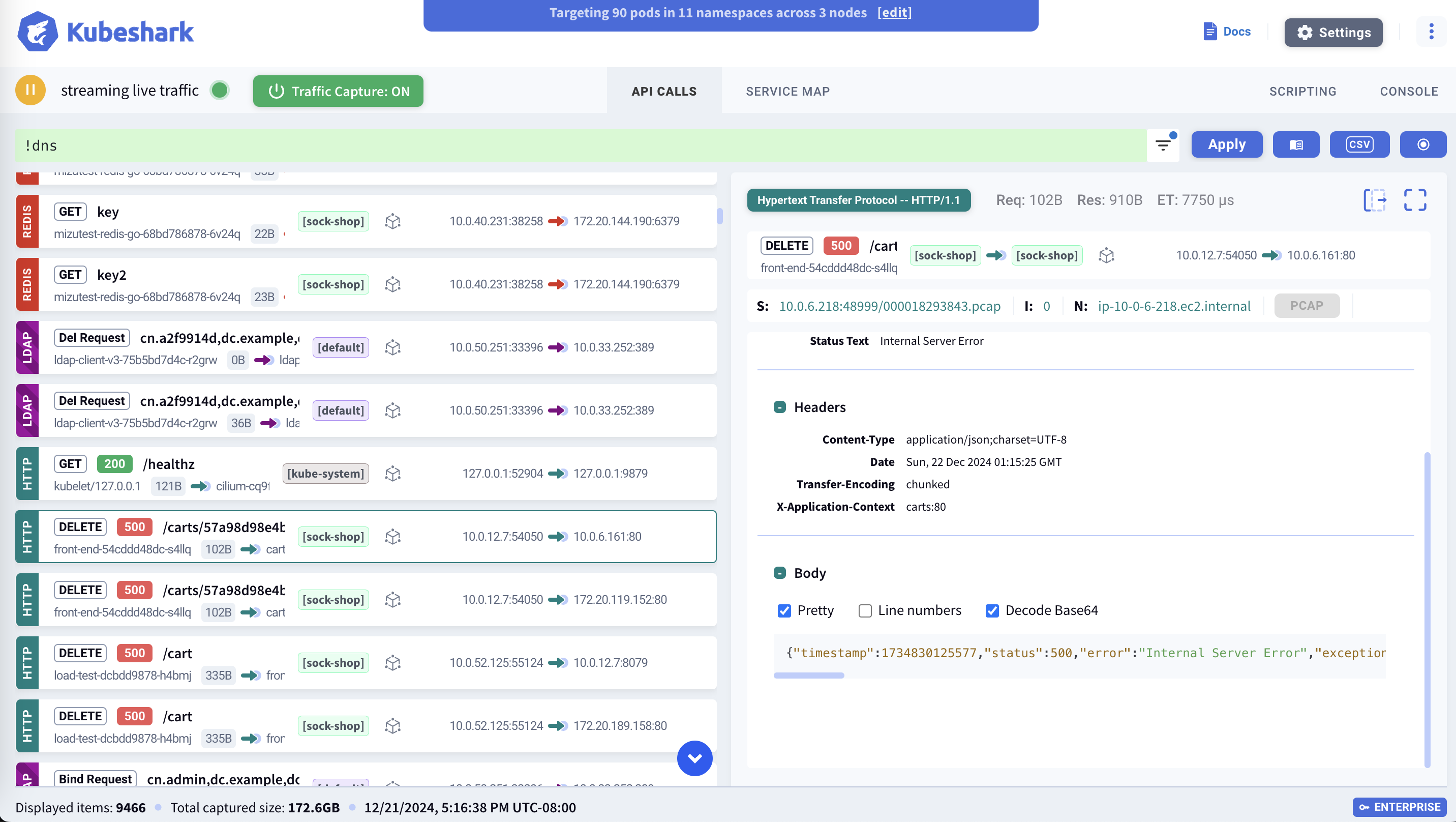
The API Stream displays cluster-wide API calls in real-time, or when viewing the contents of a delayed indexed snapshot. Each API call includes complete information:
- Kubernetes context — Pod, service, namespace, node, labels
- Operating system context — Process information via eBPF
- API context — Protocol, method, endpoint, status code, headers
- Network payload — Full request and response bodies
How It Works
The API Stream receives L7 traffic captured by Workers and streamed through the Hub. Traffic flows into the stream when:
| Source | Description |
|---|---|
| Real-time indexing | Live API calls as they occur |
| Delayed indexing | API calls from an indexed snapshot |
The stream will be empty if traffic indexing is disabled.
Stream Entries
Each entry in the stream shows:
| Field | Description |
|---|---|
| Protocol | HTTP, gRPC, Kafka, Redis, etc. |
| Method | GET, POST, PUT, DELETE, etc. |
| Status code | Response status (200, 404, 500, etc.) |
| Source | Pod/service initiating the request |
| Destination | Pod/service receiving the request |
| Timestamp | When the API call occurred |
| Latency | Request/response round-trip time |

Entry Details
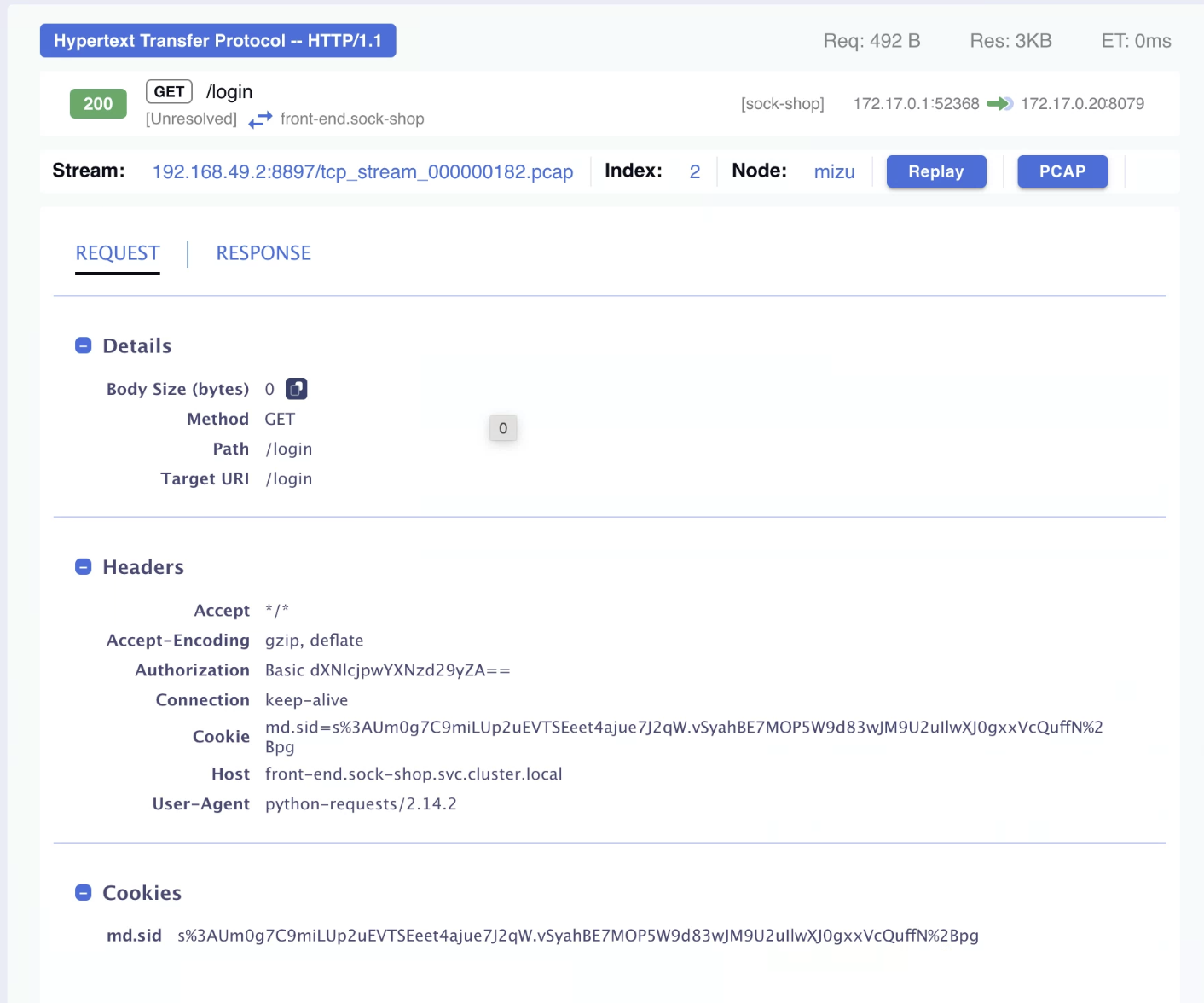
Clicking any stream entry opens the detail panel with full request/response information:
- Complete headers
- Full payload (request and response bodies)
- TCP stream information
- Timing breakdown
Request/Response Payload
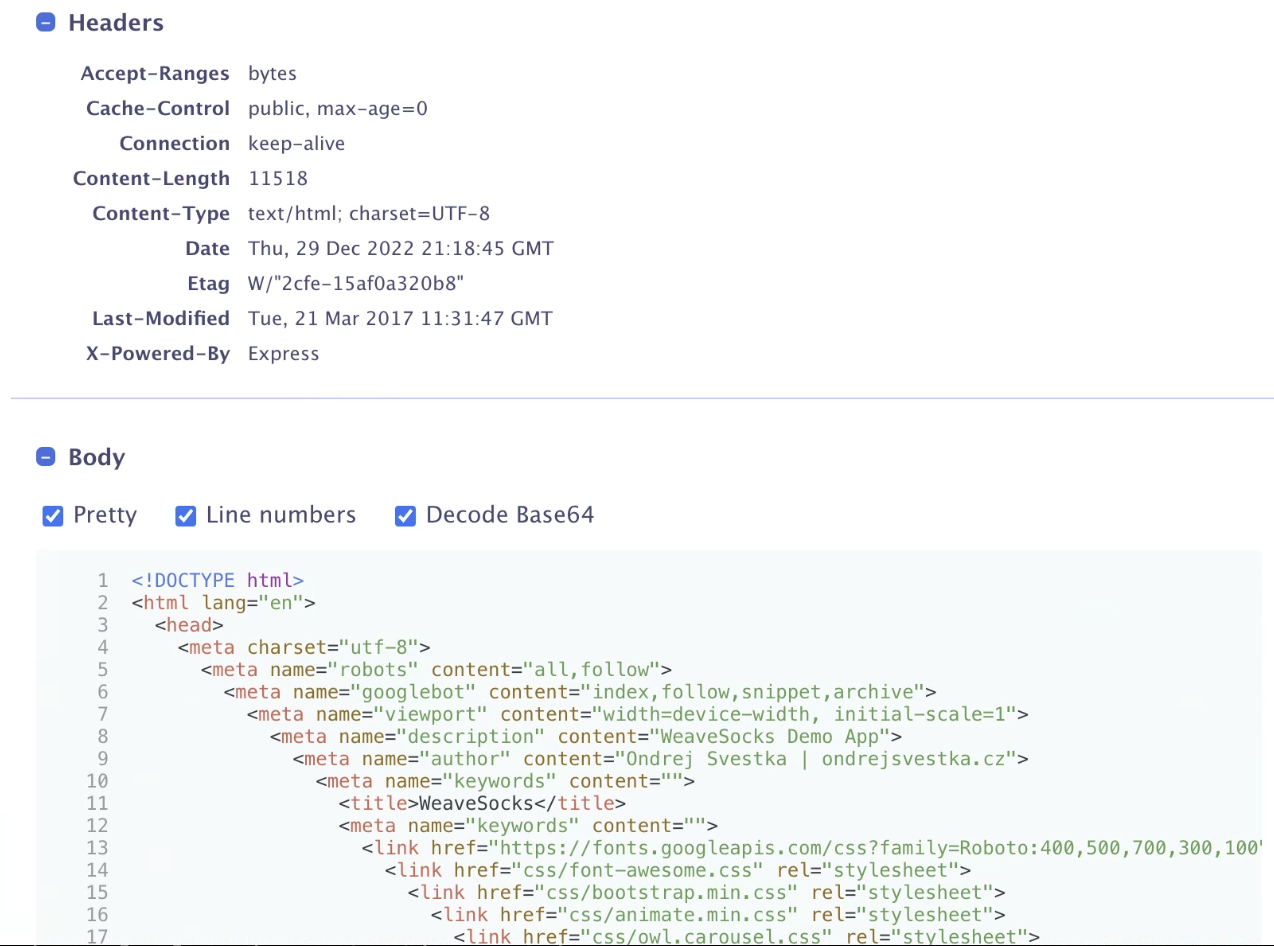
Headers and payload are displayed in human-readable format for supported protocols.
Filtering with KFL
When KFL (Kubeshark Filter Language) is applied, only API calls matching the filter appear in the stream. Non-matching calls are excluded from the view.
# Show only HTTP 500 errors
http and response.status == 500

# Show traffic to a specific service
dst.name == "payment-service"

# Show only live traffic
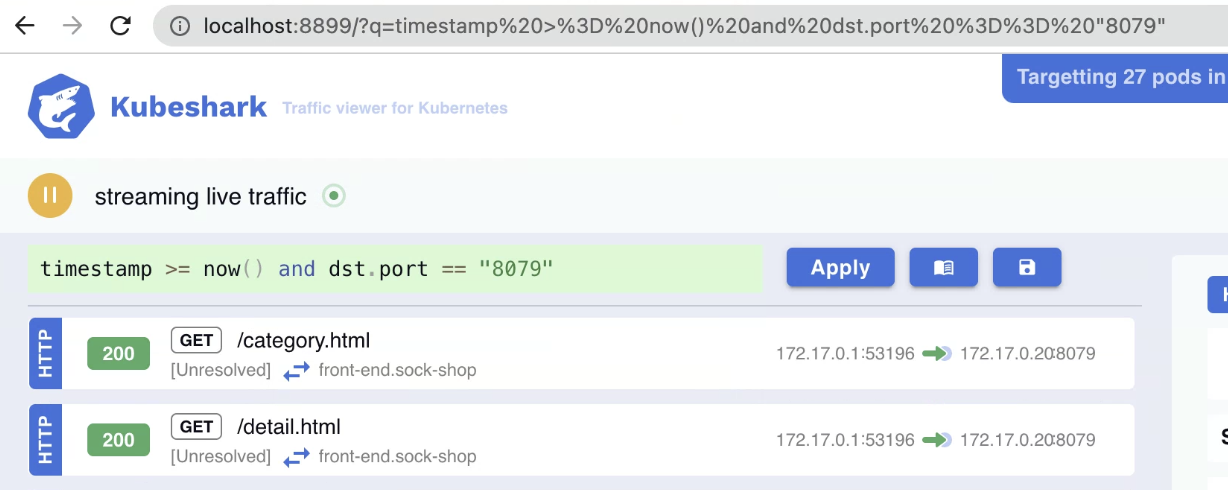
timestamp >= now()
See Display Filters (KFL2) for complete syntax reference.
Queryable UI Elements
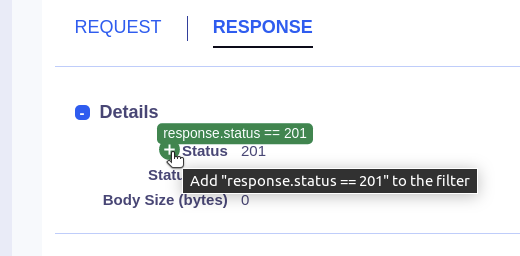
Hovering over UI elements with a green plus sign indicates they are queryable. Clicking appends the corresponding filter to your KFL statement.
Pause/Resume Indexing
Toggle L7 traffic indexing directly from the dashboard:
| State | Button | Effect |
|---|---|---|
| Active | 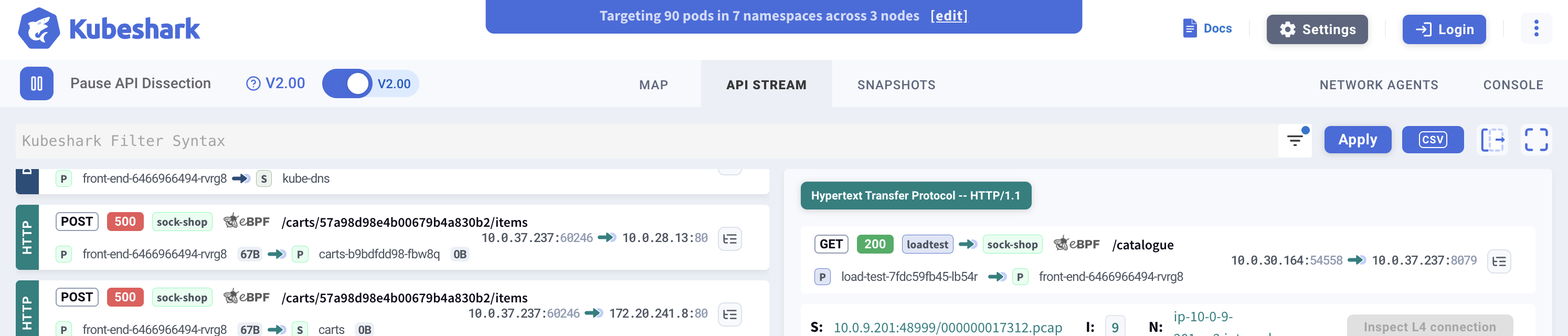 | Pause indexing |
| Paused | 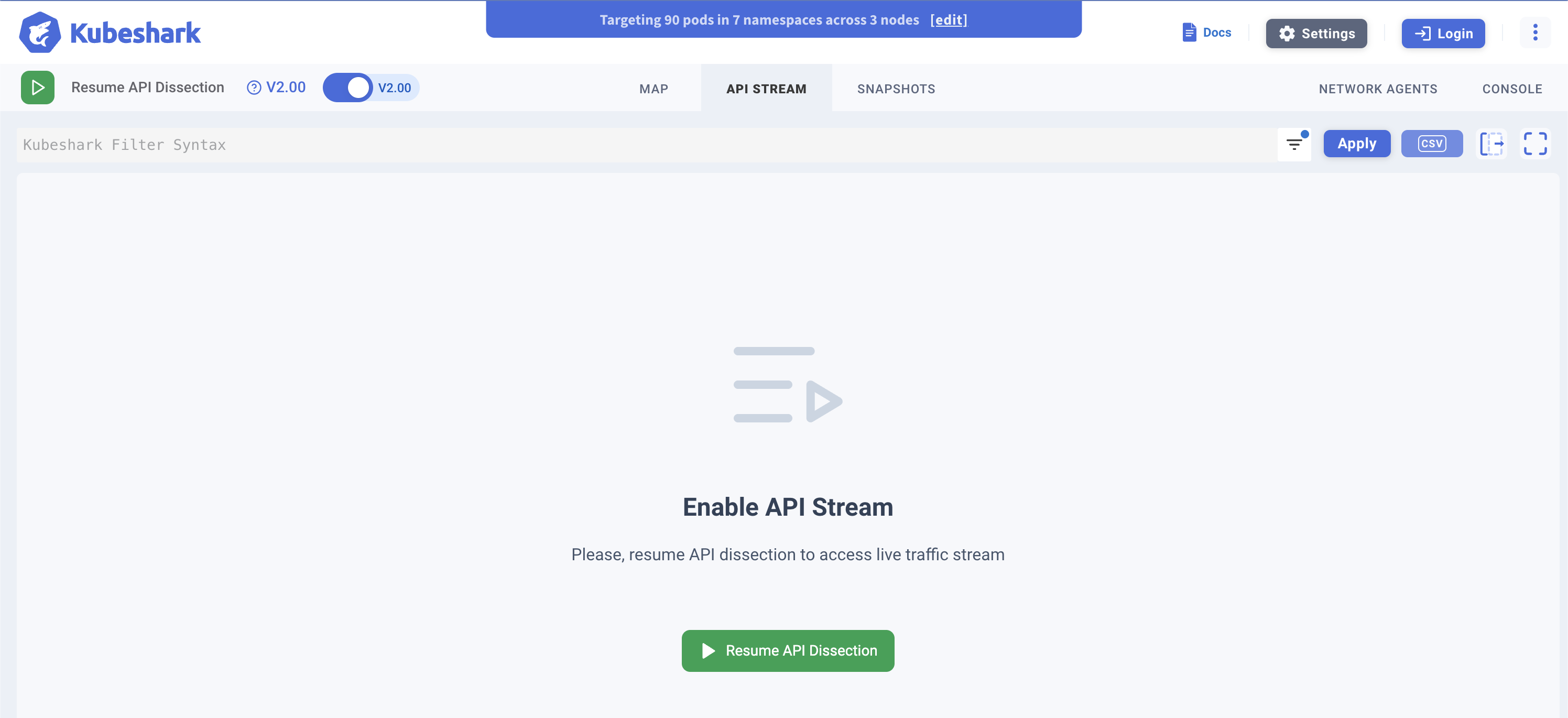 | Resume indexing |
Pausing indexing does not stop Raw Capture—L4 traffic continues to be captured while the stream is paused.
See Enabling / Disabling L7 Traffic Indexing for more details.
Shareable URLs
Queries are automatically embedded in the browser URL. Copy and share the URL to give colleagues the same filtered view of traffic.
What’s Next
- Display Filters (KFL2) — Filter syntax reference
- Enabling / Disabling Indexing — Control indexing state
- Delayed Indexing — View API calls from snapshots